Web App · $5
Focus Timer & Noise Meter
A projector-friendly timer for each activity, plus a live volume meter that shows when the room gets too loud.
What it does
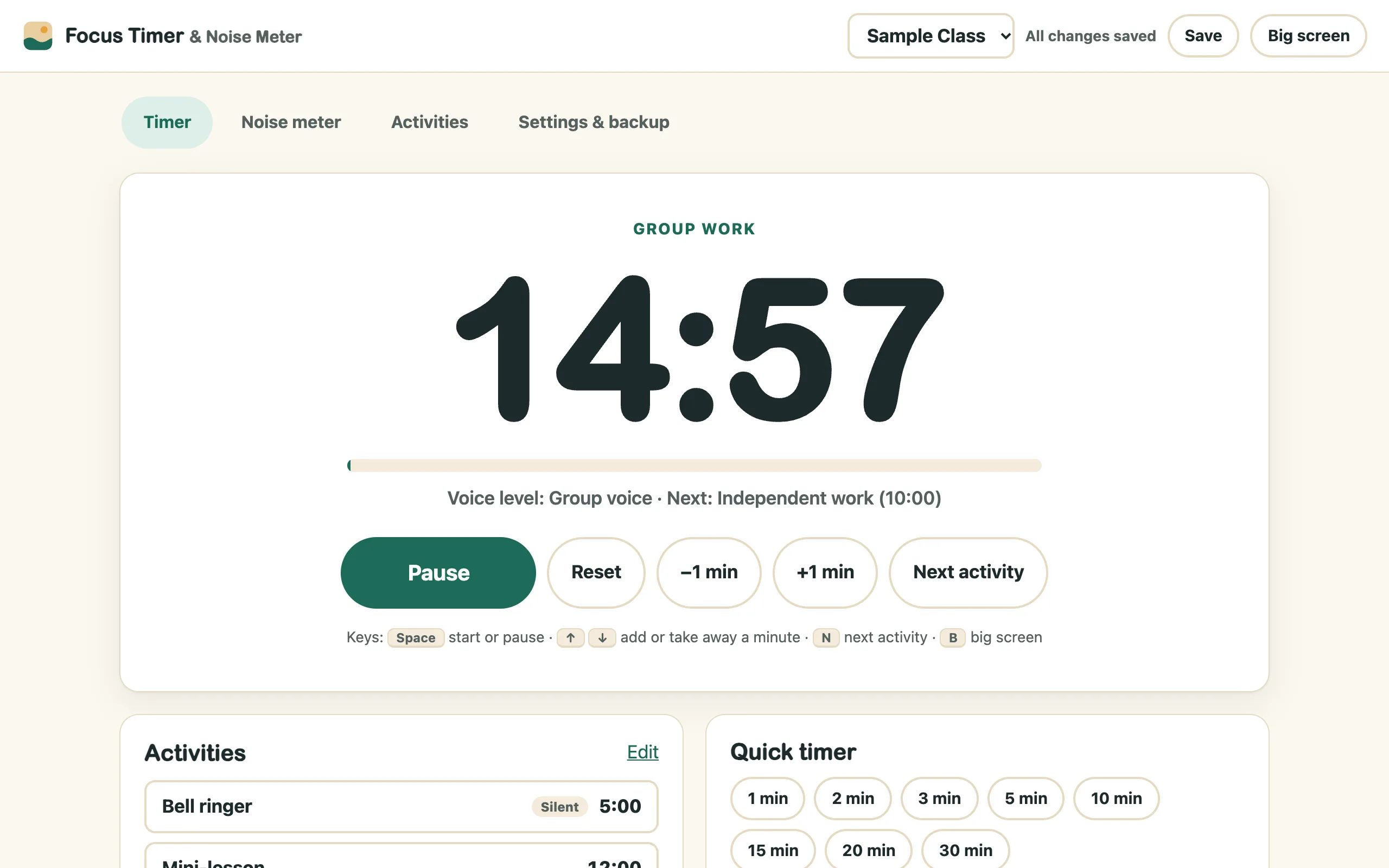
- A timer for each activityYou start with common activities (bell ringer, mini-lesson, partner talk, group work and more). Rename them, change times and reorder them.
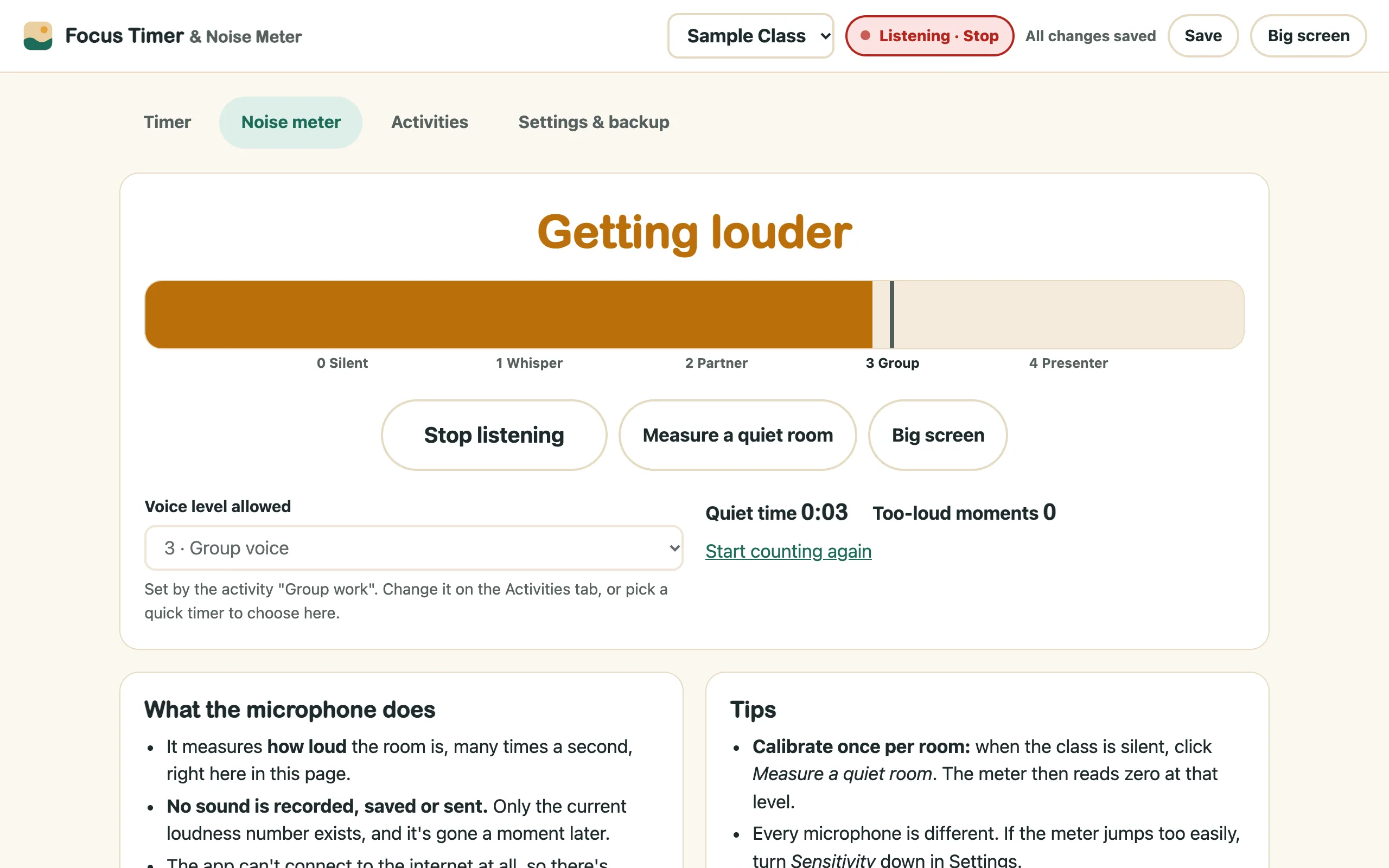
- Voice levels 0 to 4Each activity sets its own level, from Silent to Presenter voice. The meter's limit line moves to match.
- Forgiving noise meterIt only shows Too loud! when the room stays over the limit for 2 seconds, so a dropped book won't set it off.
- Run a whole lessonNext activity moves down your list, or turn on auto-advance and let it run.
- Calibrate per roomClick Measure a quiet room while the class is silent, and the meter reads zero at that level.
- Keyboard shortcutsSpace start or pause, ↑ ↓ add or take away a minute, N next, B big screen.
A closer look
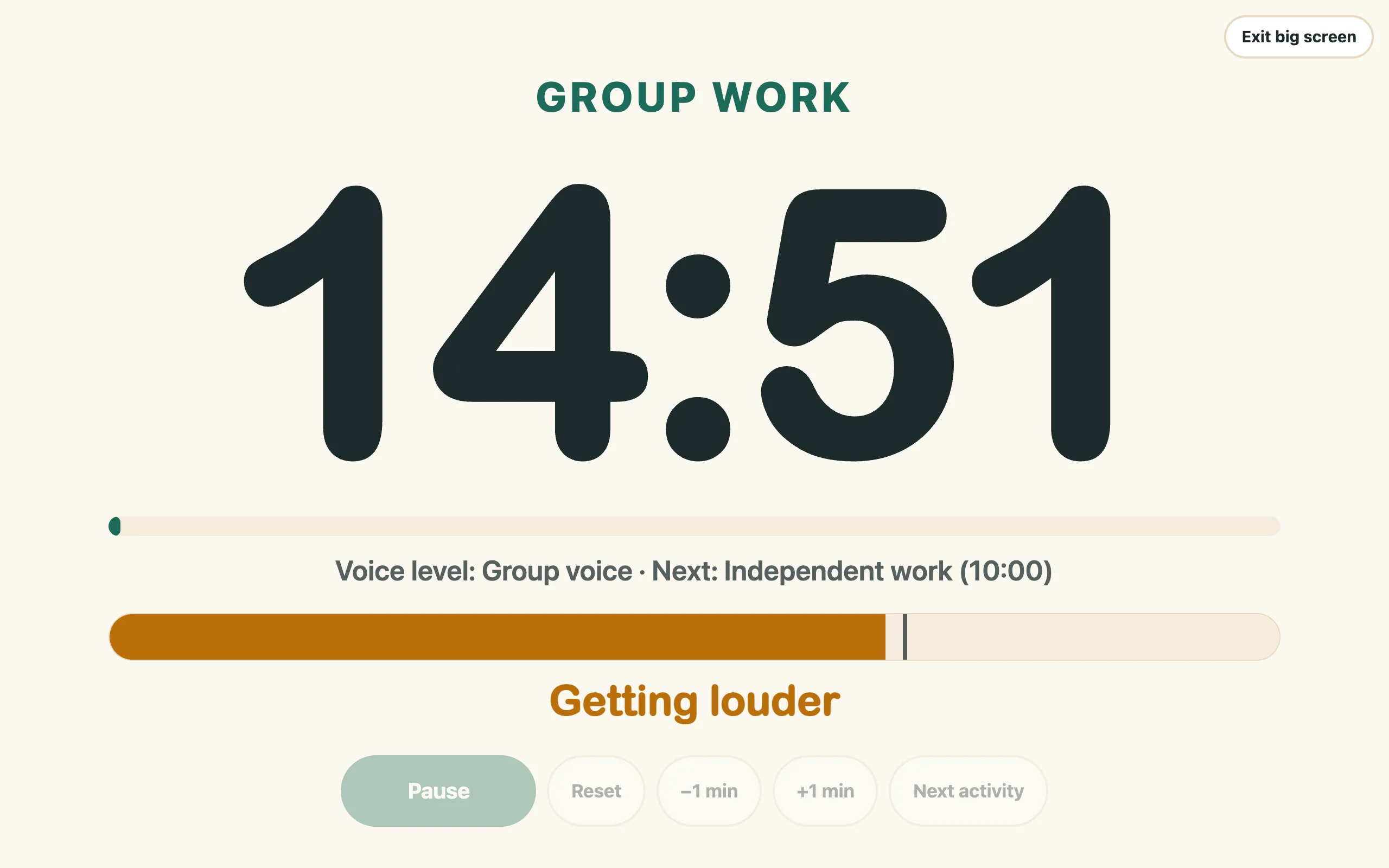
Real screenshots of the app with sample names. Click any picture to see it full size.
How to run it
Setup takes a few minutes. Every kit comes with a 2-page Quick Start guide with these steps. Prefer to watch? The video at the top of this page shows them.
- Open the app on the projector computerMac or PC: unzip the download, then double-click
index.html. It opens in your web browser. Chromebook: open the zip in the Files app, dragindex.htmlinto My files, then double-click it. Bookmark it (Ctrl+D, or ⌘+D on a Mac) so it's one click away tomorrow. - Set up your activitiesType a class name and click Create class. On Activities, rename, retime and reorder, and pick a voice level for each. Choose Don't check when you'll be talking, since the meter hears you too.
- Run the timerClick an activity to start it, then Big screen for the projector. The numbers turn orange near the end and a chime plays when time's up.
- Turn on the noise meterOn Noise meter, click Start listening and allow the microphone. While the class is silent, click Measure a quiet room.
- Back up your activitiesOn Settings & backup, click Export backup to save your classes, activities and settings to one file.
What the microphone does: it measures how loud the room is, many times a second, inside this page. No sound is recorded, saved or sent, and it only listens after you click Start listening.
Where your data lives
Your activities and settings stay in this browser, on this computer. We never receive student data, and student names are never stored: Import class list uses only class names. The app can't connect to the internet at all.
If something looks wrong
The microphone won't start.
Click the microphone or lock icon in the address bar and allow it. On a school device, IT may need to allow the microphone. Chrome and Edge work best.
I don't hear the chime.
Check the computer's volume, then click Test the chime in Settings. Browsers only play sound after you've clicked somewhere on the page.
The meter is too jumpy, or barely moves.
Every microphone is different. Adjust Sensitivity in Settings, then measure the quiet room again.
More Sandbox Kits
Get every kit with the Master Key.
$99 once for every tool in the shop and every one we build after it.