Web App · $5
Hall Pass Log
Students tap their name to sign out and back in. You see who's out, for how long, and patterns over the week.
What it does
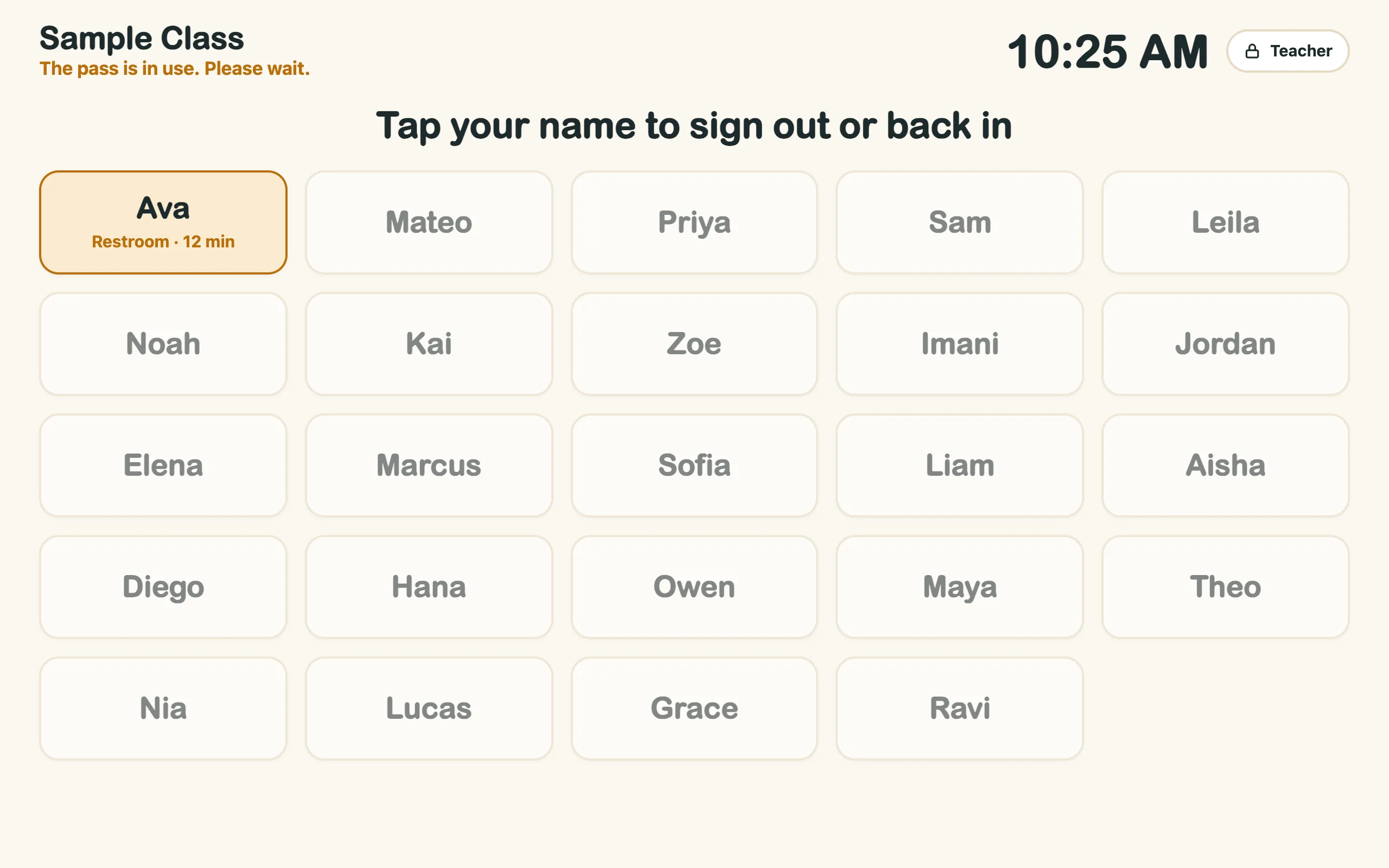
- Full-screen student sign-outBig name buttons, a place picker and an Undo on every tap. It asks the display to stay awake.
- Limit how many are outAllow 1 to 4 students out at once, or no limit. Others see "Please wait."
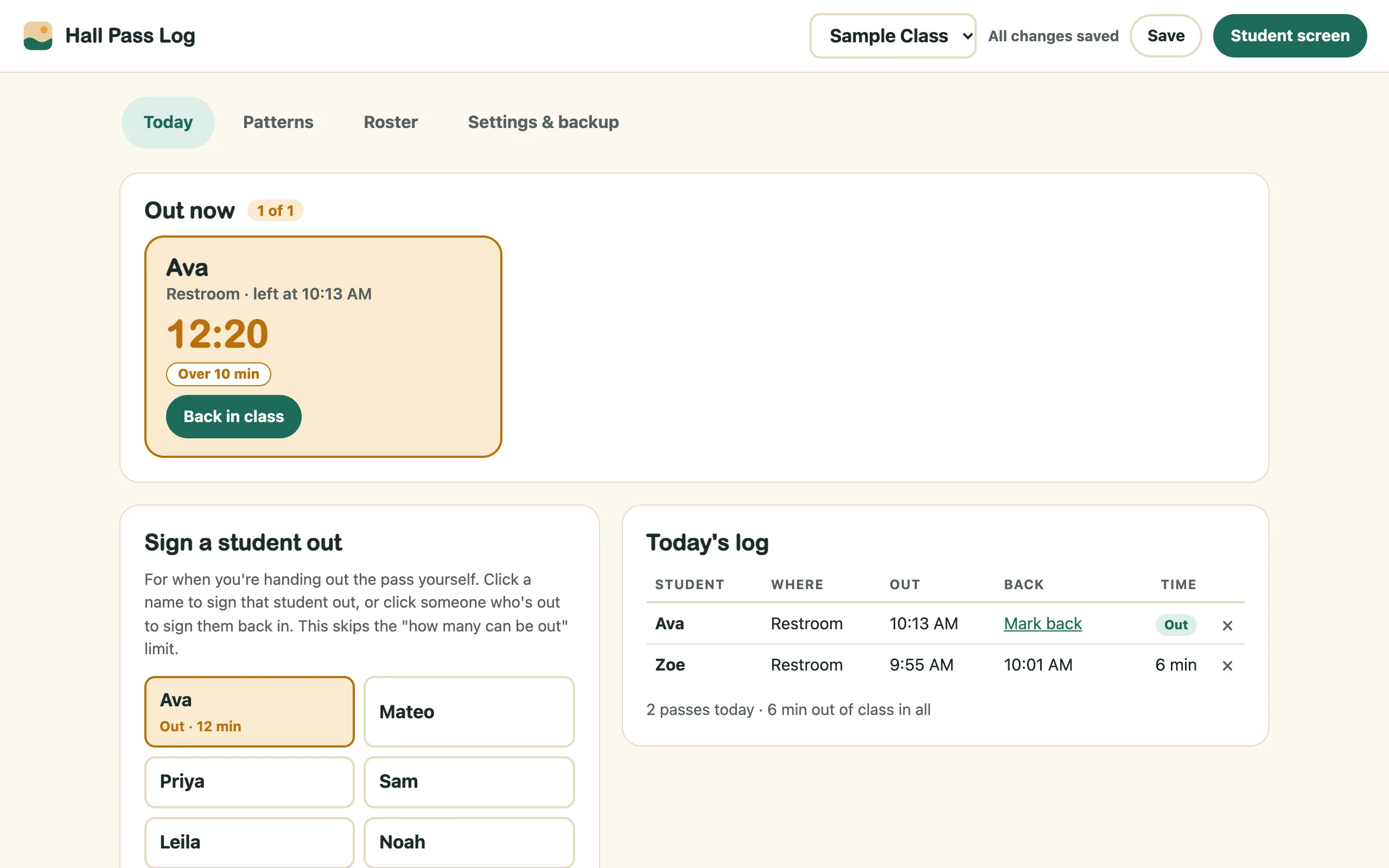
- Who's out right nowLive timers for every student who's out. Cards turn orange after your long-trip time.
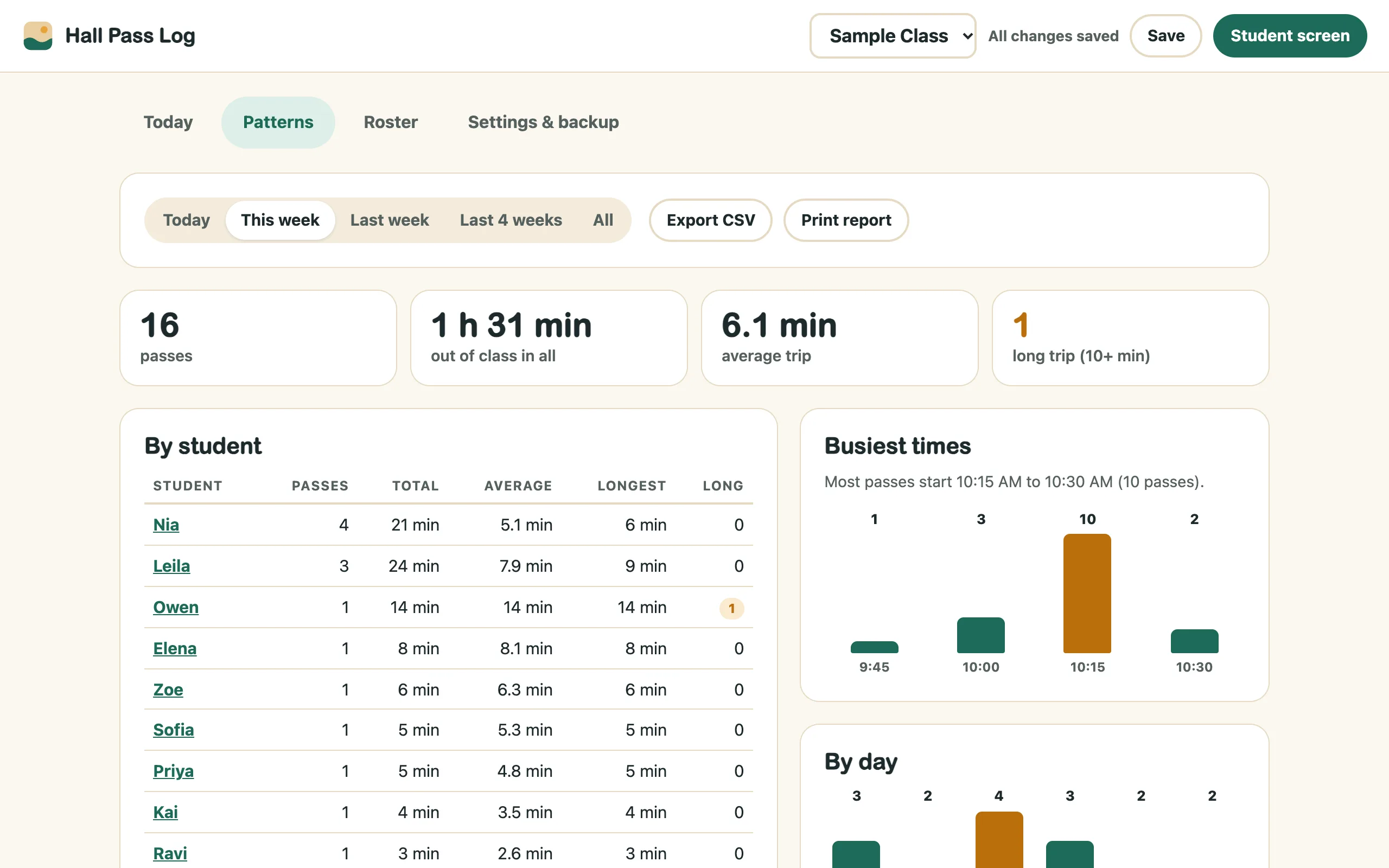
- Patterns over timePasses and minutes per student, the busiest times, days of the week and places. Print a report or export a CSV for a team meeting.
- Bell scheduleEnter your period times and the app switches classes at each bell, even on rotating A/B or A–F days.
- PIN-locked teacher viewA teacher PIN keeps students on the student screen. Old passes can be deleted automatically after 30, 90 or 180 days.
A closer look
Real screenshots of the app with sample names. Click any picture to see it full size.
How to run it
Setup takes a few minutes. Every kit comes with a 2-page Quick Start guide with these steps. Prefer to watch? The video at the top of this page shows them.
- Open the app on the device by the doorMac or PC: unzip the download, then double-click
index.html. It opens in your web browser. Chromebook: open the zip in the Files app, dragindex.htmlinto My files, then double-click it. Bookmark it (Ctrl+D, or ⌘+D on a Mac) so it's one click away tomorrow. Use the same computer, browser and file every day. - Add your classesType a class name, paste your students one per line and click Create class, or use Import class list on the Roster tab.
- Set your pass rulesOn Settings & backup, choose how many students can be out at once, the long-trip time, the places students can go and a teacher PIN. Turn on the bell schedule if students rotate.
- Start the student screenClick Student screen. Students tap their name and where they're going, then tap again when they're back. To leave, click Teacher and enter your PIN.
- Check patterns, then clear at term endOn Patterns, pick a week or longer. At the end of the term, export a CSV if you want a record, then click Clear all passes. Rosters stay.
The PIN is a convenience lock to keep students on the student screen, not a password. The Quick Start guide explains how to reset a forgotten one.
Where your data lives
Names and sign-out times stay in this browser, on this computer. We never receive student data. A built-in browser rule blocks the app from connecting to the internet at all.
If something looks wrong
My data is gone.
Make sure you're on the same computer, browser and copy of index.html as before. If the browser data was cleared, use Import backup with your latest backup file.
The screen goes to sleep.
Some computers ignore the app's "stay awake" request. Change the device's sleep setting, or plug it in.
A yellow banner says the app can't save.
A browser setting is blocking site data. Change it or ask IT, and export a backup before you close the tab. Avoid private or incognito windows, which erase everything when they close.
More Sandbox Kits
Get every kit with the Master Key.
$99 once for every tool in the shop and every one we build after it.