Web App · $5
Lunch Count Board
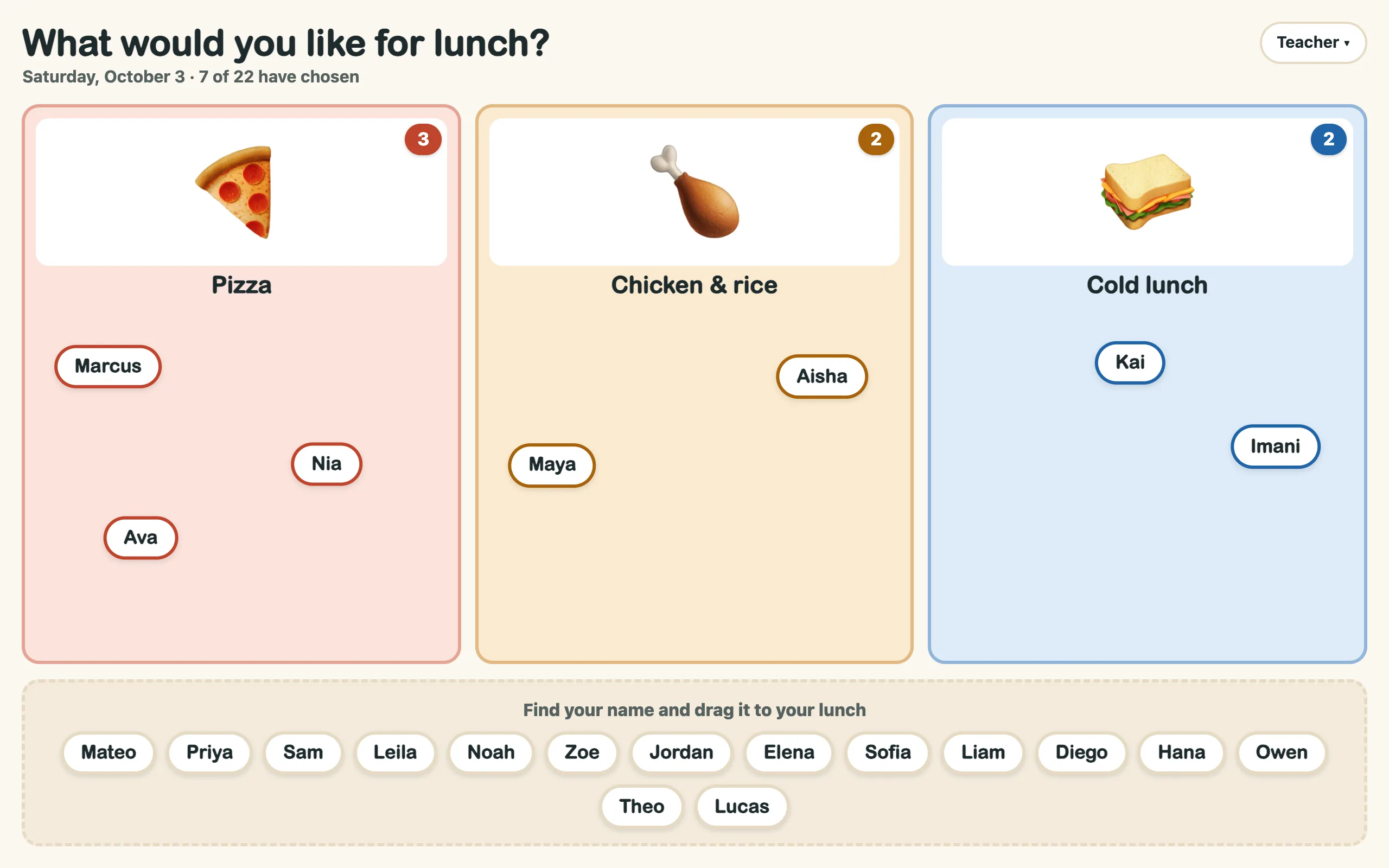
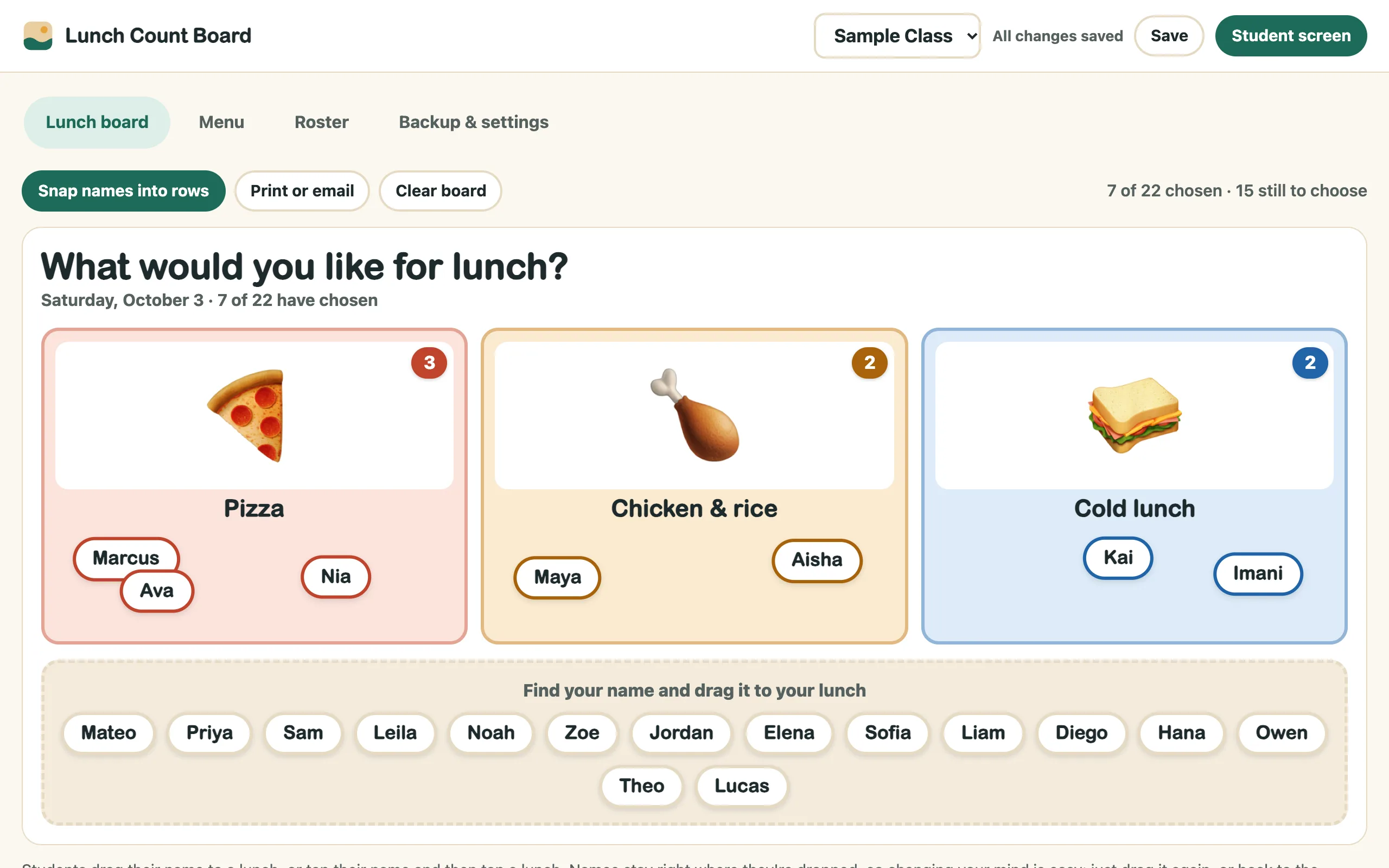
Students drag their name to today's lunch on your interactive board, with a picture of each meal for young readers. Snap the names into rows, then print or email the count.
What it does
- Built for touch boardsSeveral students can drag at once on a multi-touch board. Trouble dragging? Tap your name, then tap your lunch.
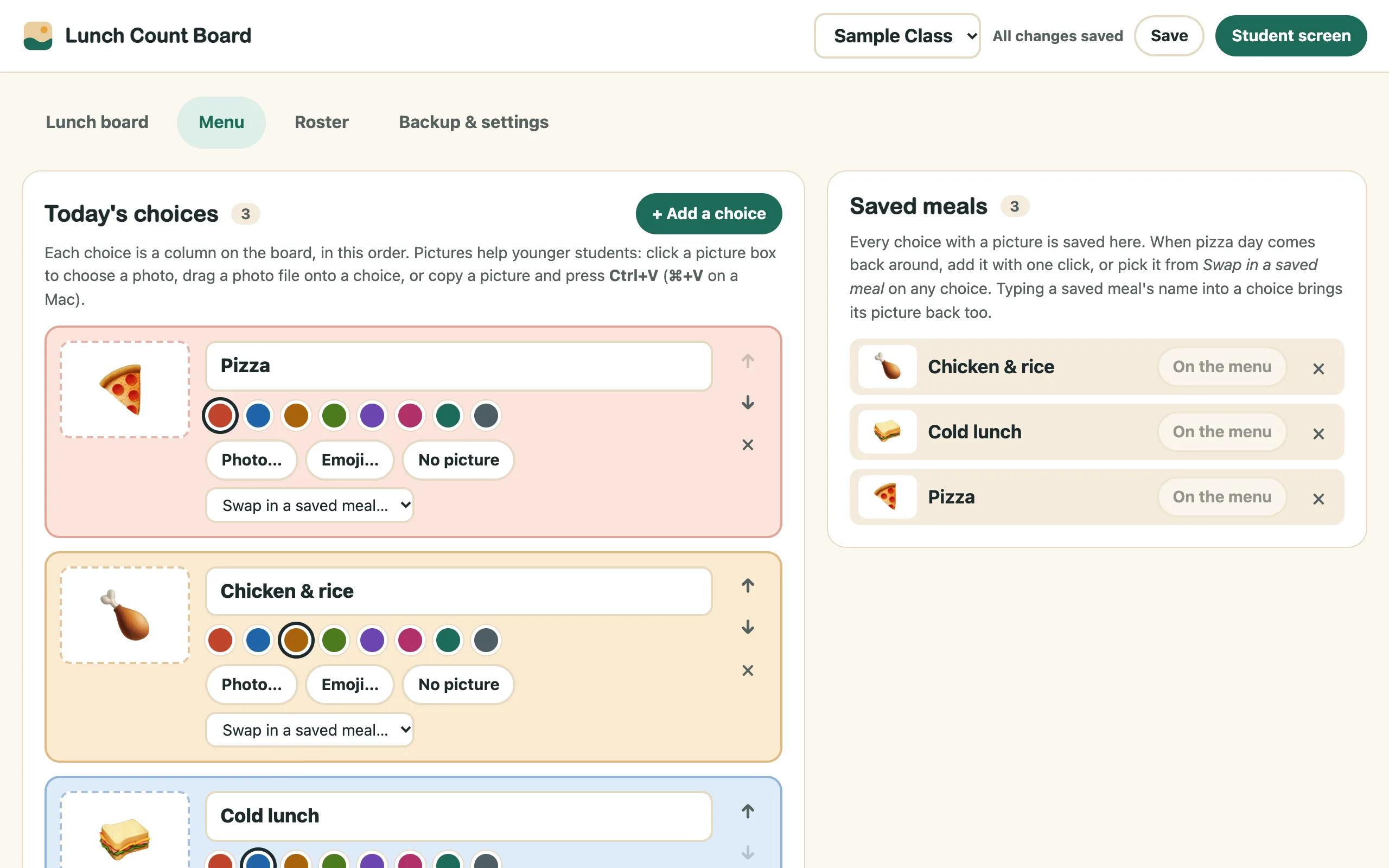
- Pictures for young readersAdd a photo of each meal, drop in a picture file, paste one, or pick an emoji.
- Saved mealsEvery meal remembers its picture. When pizza day comes back, add it in one click.
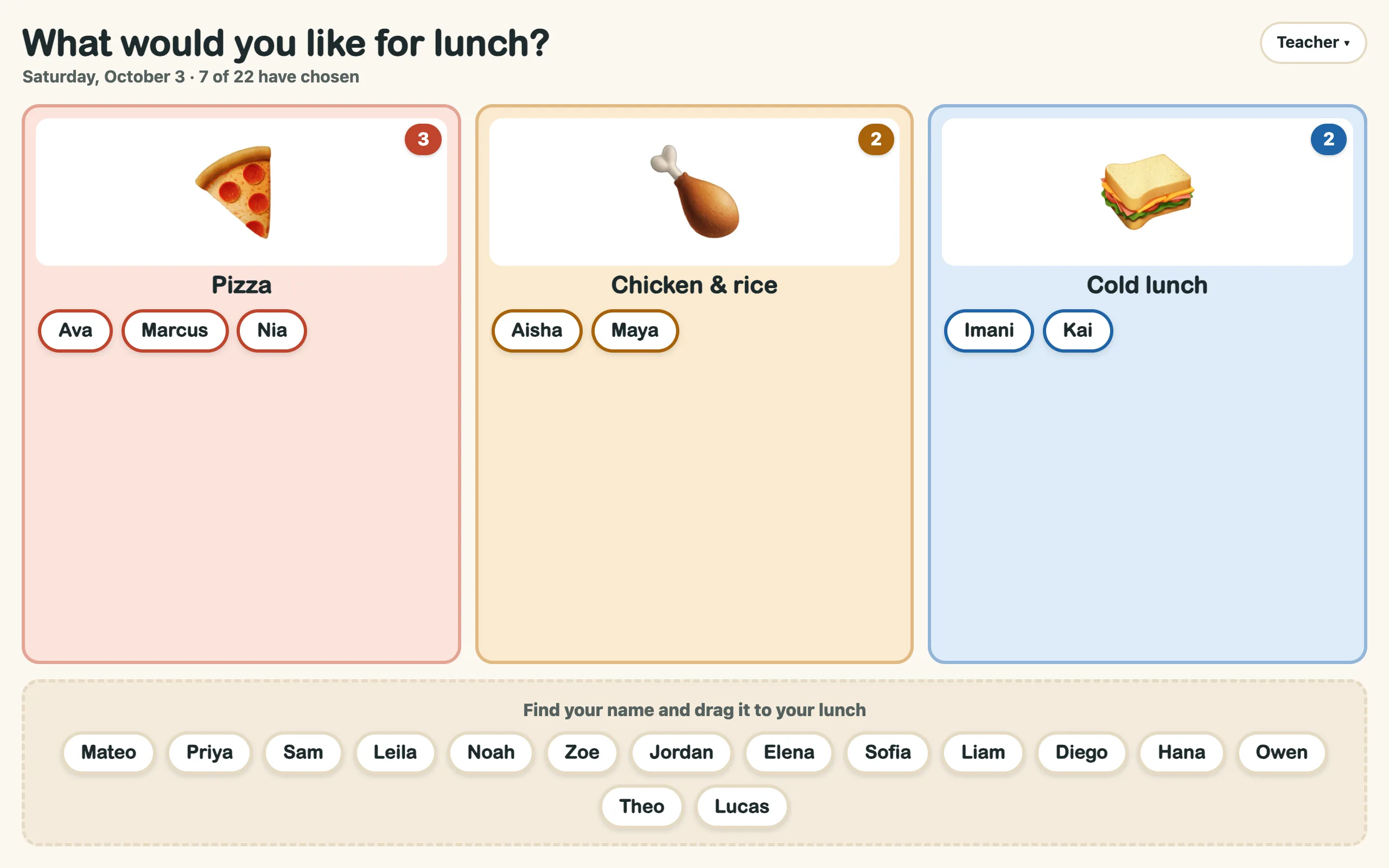
- Snap into rowsLine every column up A to Z so students can check their name.
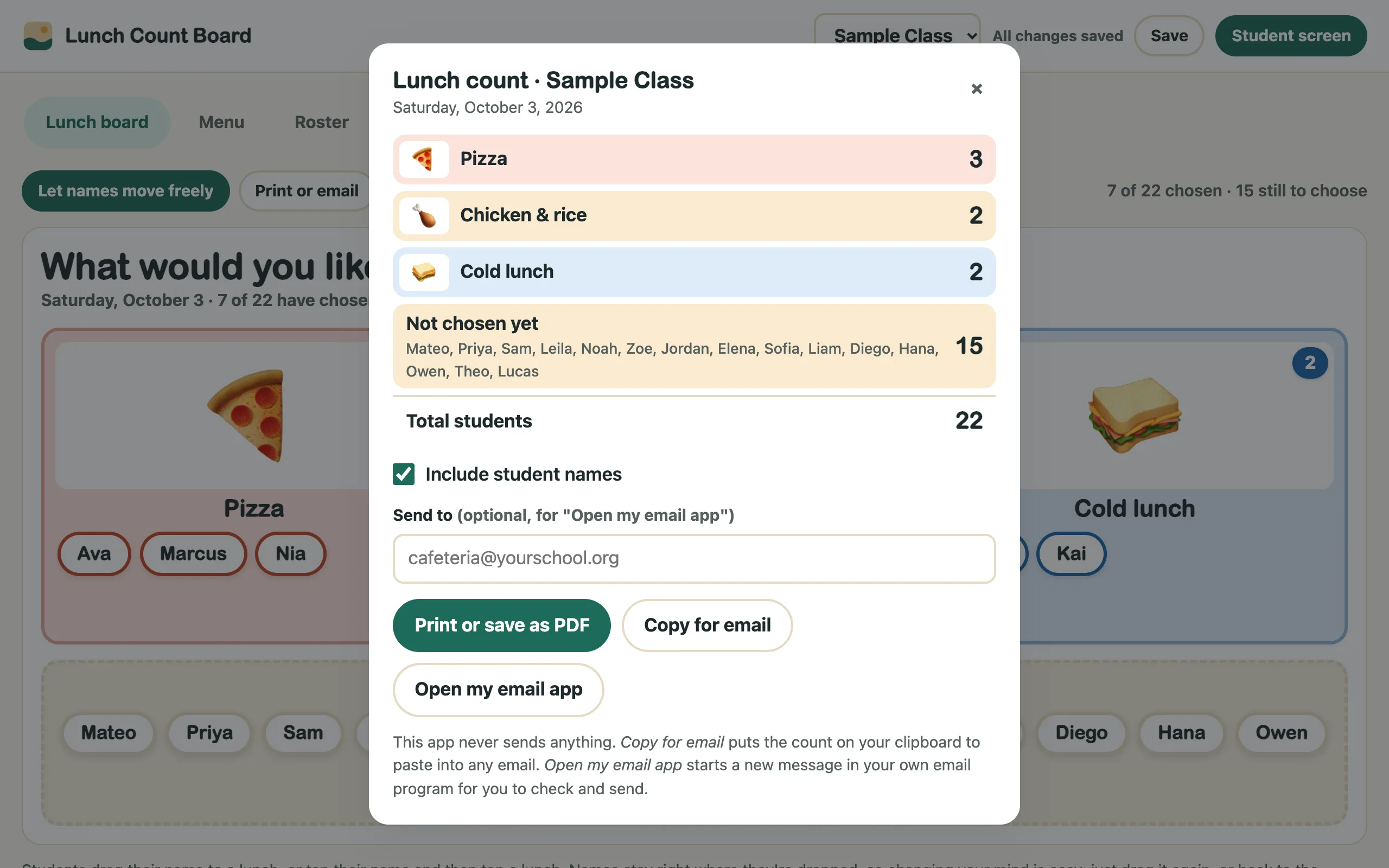
- Print or email the countTotals plus who hasn't chosen yet, with or without names. Print it, copy it into an email, or open a message in your own email app.
- Fresh every morningThe board clears itself each new day and asks whether today's menu is right.
A closer look
Real screenshots of the app with sample names. Click any picture to see it full size.
How to run it
Setup takes a few minutes. Every kit comes with a 2-page Quick Start guide with these steps. Prefer to watch? The video at the top of this page shows them.
- Open the appMac or PC: unzip the download, then double-click
index.html. It opens in your web browser. Chromebook: open the zip in the Files app, dragindex.htmlinto My files, then double-click it. Bookmark it (Ctrl+D, or ⌘+D on a Mac) so it's one click away tomorrow. On an interactive board, plug your laptop or Chromebook in with both the HDMI and the USB touch cable. - Add your classType a class name, paste your students one per line and click Create class, or use Import class list on the Roster tab.
- Set today's menuOn Menu, each choice is a column. Name it, pick a color and add a picture. Quick add has Cold lunch, Salad bar and Absent.
- Put up the student screenClick Student screen. Students drag their name to their lunch. Your controls hide behind the small Teacher button.
- Snap, then send the countTap Teacher → Snap names into rows, then Print or email the count. Office only needs numbers? Untick Include student names.
The app never sends anything itself. "Open my email app" starts a message in your own email program for you to check and send.
Where your data lives
Names, the menu and pictures stay in this browser, on this computer, and only today's picks are kept. We never receive student data. A built-in browser rule blocks the app from connecting to the internet.
If something looks wrong
Touching the board does nothing.
Check that the USB touch cable goes from the board to your computer.
A picture won't open.
Use a JPG or PNG (not iPhone HEIC). From a website? Right-click → Copy image, then paste.
"Storage full" at the top.
Remove a few saved meals on the Menu tab, or use emoji instead of photos.
More Sandbox Kits
Get every kit with the Master Key.
$99 once for every tool in the shop and every one we build after it.