Web App · Free
Name Picker & Group Maker
Fair cold-calling that remembers who's had a turn, plus random groups or pairs that avoid repeats from last time.
What it does
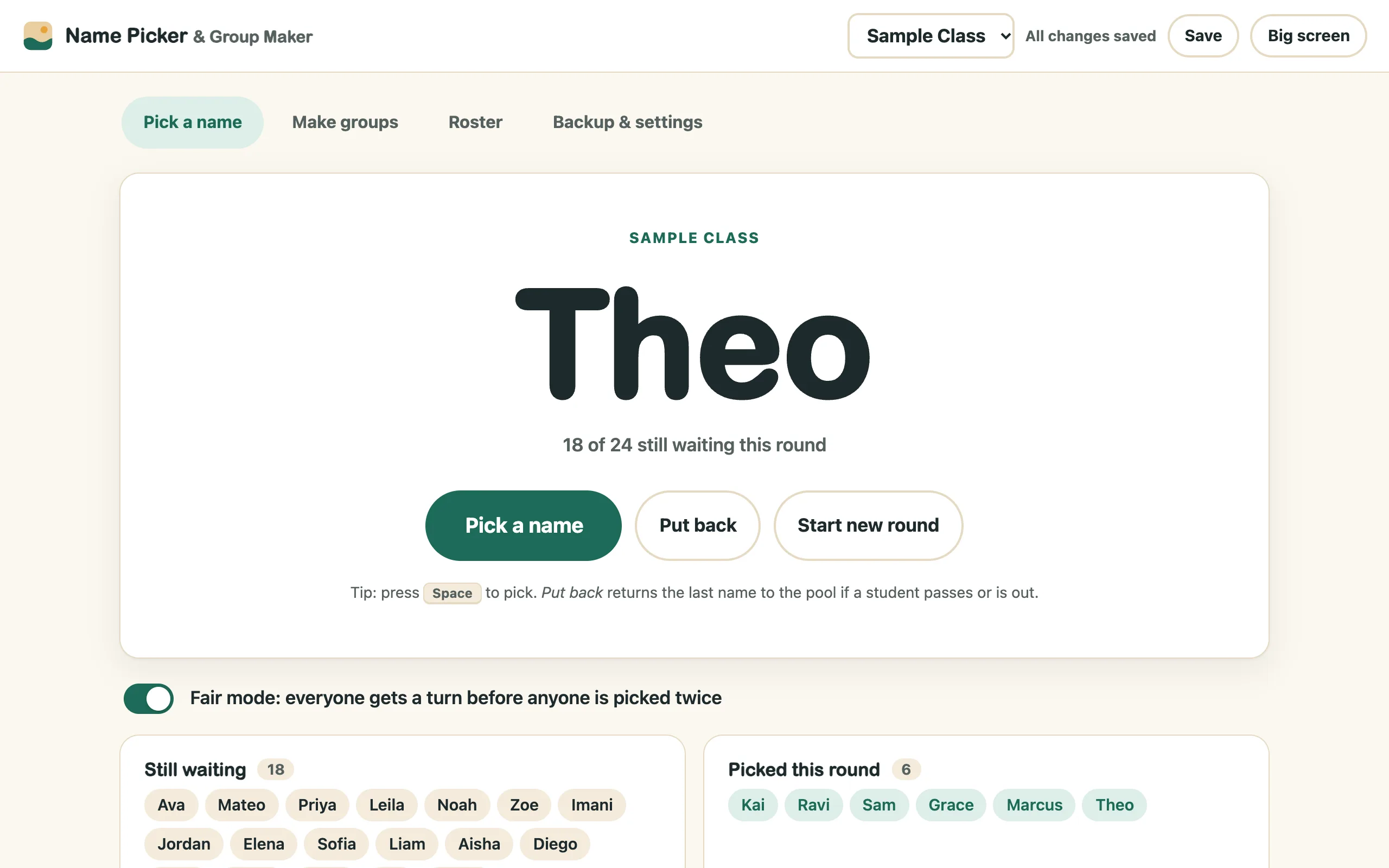
- Fair modeEveryone gets a turn before anyone is picked twice, and a new round starts on its own. Turn it off for pure random.
- Put backIf a student passes or is out of the room, one click returns their name to the pool.
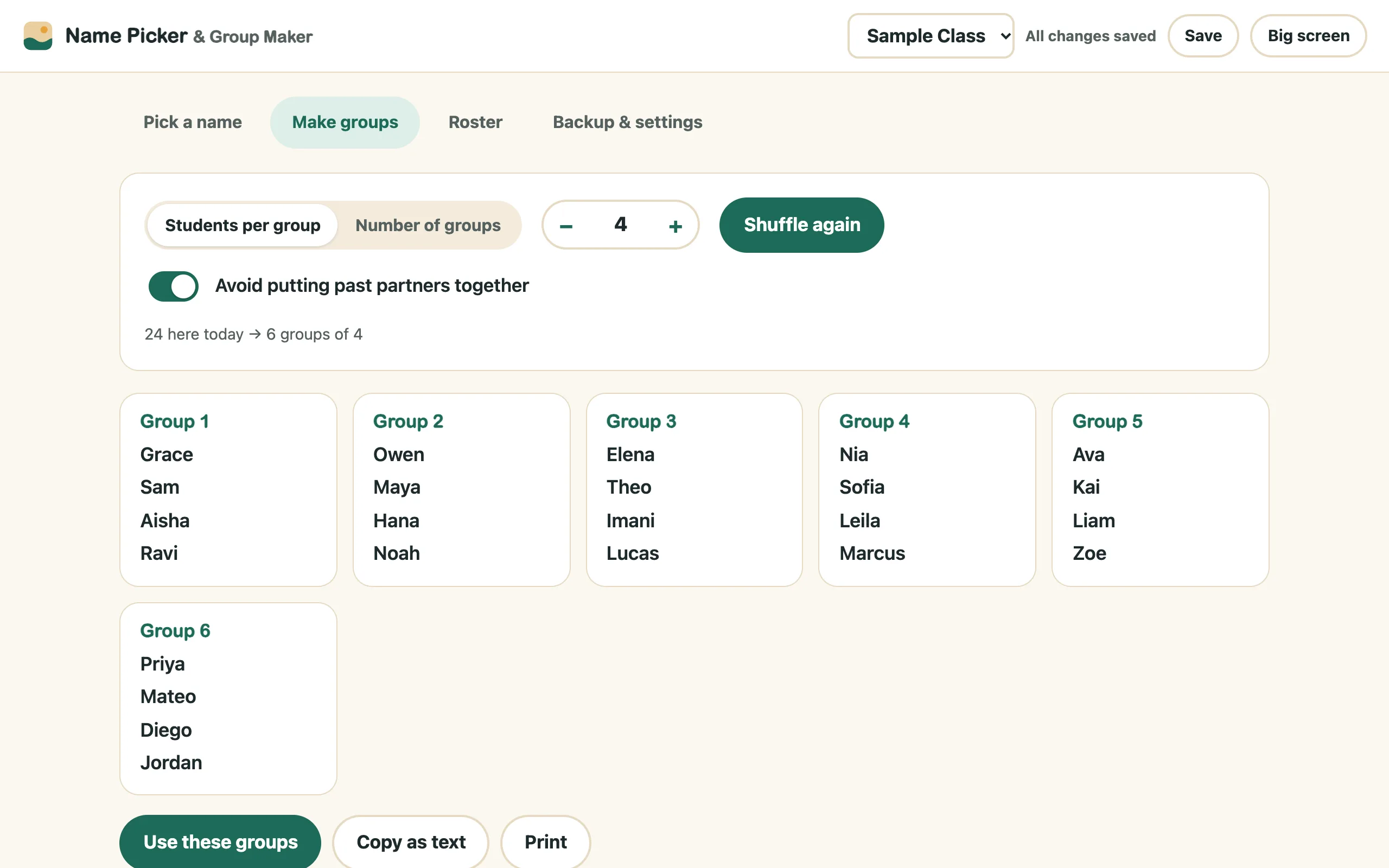
- Groups that mix things upChoose students per group (2 for pairs) or a number of groups. Click Use these groups and next time it tries to give everyone new partners.
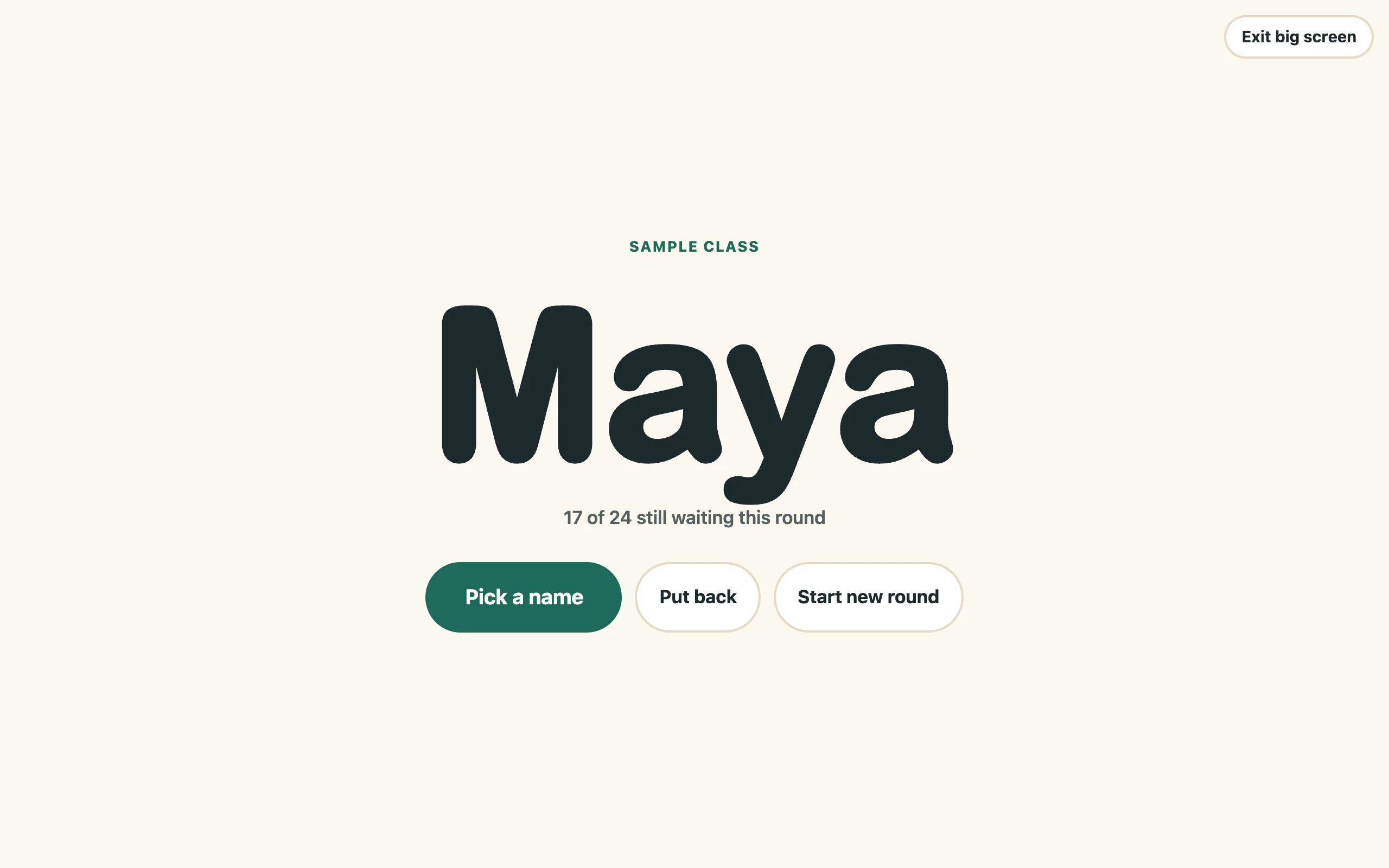
- Big screenA full-screen view for the projector. Press Space to pick and Esc to exit.
- Quick attendanceUncheck anyone who's absent. They're skipped for picks and groups today and come back automatically tomorrow.
- Copy or print groupsPaste groups into a slide or your LMS, or print them.
A closer look
Real screenshots of the app with sample names. Click any picture to see it full size.
How to run it
Setup takes a few minutes. Every kit comes with a 2-page Quick Start guide with these steps. Prefer to watch? The video at the top of this page shows them.
- Open the appMac or PC: unzip the download, then double-click
index.html. It opens in your web browser. Chromebook: open the zip in the Files app, dragindex.htmlinto My files, then double-click it. Bookmark it (Ctrl+D, or ⌘+D on a Mac) so it's one click away tomorrow. - Add your classType a class name (like "Period 3") and paste your students, one per line. Copying a column from a spreadsheet works well. Already have a class list? Roster → Import class list.
- Pick namesClick Pick a name or press Space. Click Big screen when you're projecting.
- Make groupsOn Make groups, set the size and click Make groups. Don't like them? Shuffle again. When you use a set, click Use these groups so the app remembers who worked together.
- Back up your classesOn Backup & settings, click Export backup once a month. Use Import backup to restore it or move to another computer.
Privacy tip: first names or initials are all the app needs. Don't enter anything else about a student.
Where your data lives
Everything you enter stays in this browser, on this computer. We never receive student data. The app carries a built-in browser rule that blocks it from connecting to the internet at all, and it works with Wi-Fi off.
If something looks wrong
My data is gone.
Make sure you're on the same computer, browser and copy of index.html as before. If the browser data was cleared, use Import backup with your latest backup file.
A yellow banner says the app can't save.
A browser setting is blocking site data. Change it or ask IT, and export a backup before you close the tab. Avoid private or incognito windows, which erase everything when they close.
My district needs to approve it.
Send your IT team the Dear IT Department page. It explains how the app works and how they can check for themselves that nothing leaves the device.
More Sandbox Kits
Get every kit with the Master Key.
$99 once for every tool in the shop and every one we build after it.